Before you put a Pixel 11 in your cart this Black Friday, check what your Pixel 10 picked up this month.
The Pixel 11 Black Friday deals are tempting, I know. But the Pixel 10 picked up some serious upgrades this month.
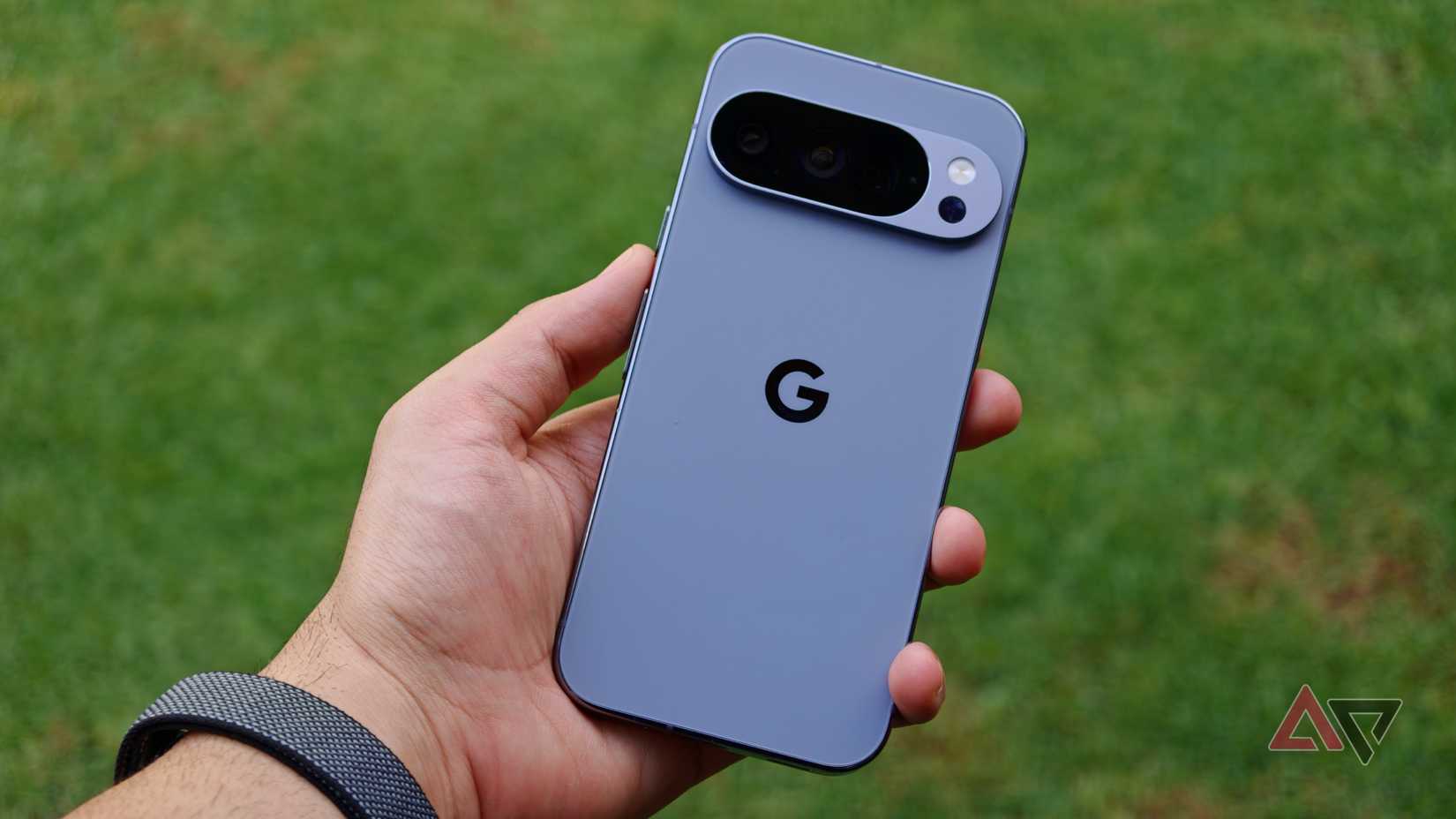
The November Pixel Drop brings Gemini Intelligence to the Pixel 10, 10 Pro, 10 Pro XL, and 10 Pro Fold (sorry, Pixel 10a users).
Now, these features won’t set themselves up. Some are a one-tap job, and others ask for permissions you’ll want to think twice about.
So let’s give your settings a few minutes. Your Pixel 10 might talk you out of a Pixel 11.
Related
I didn’t buy the Pixel 10 Pro for this feature — but now I use it every day
I wasn’t on board with the whole AI thing, but the Pixel 10 Pro might change my mind
Rambler makes dictation worth using
Every message you send gets the upgrade
Credit: Lucas Gouveia / Android Police
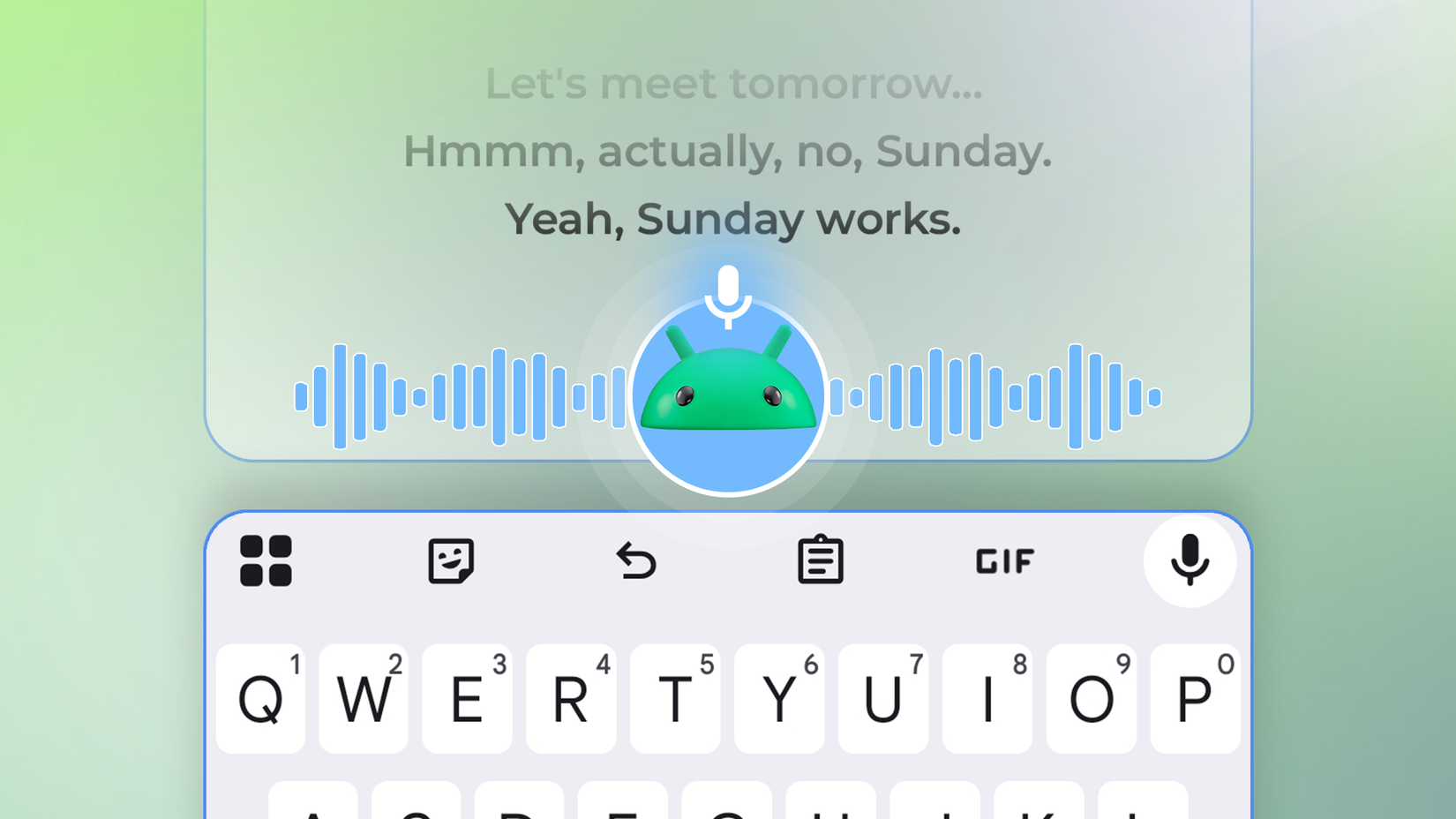
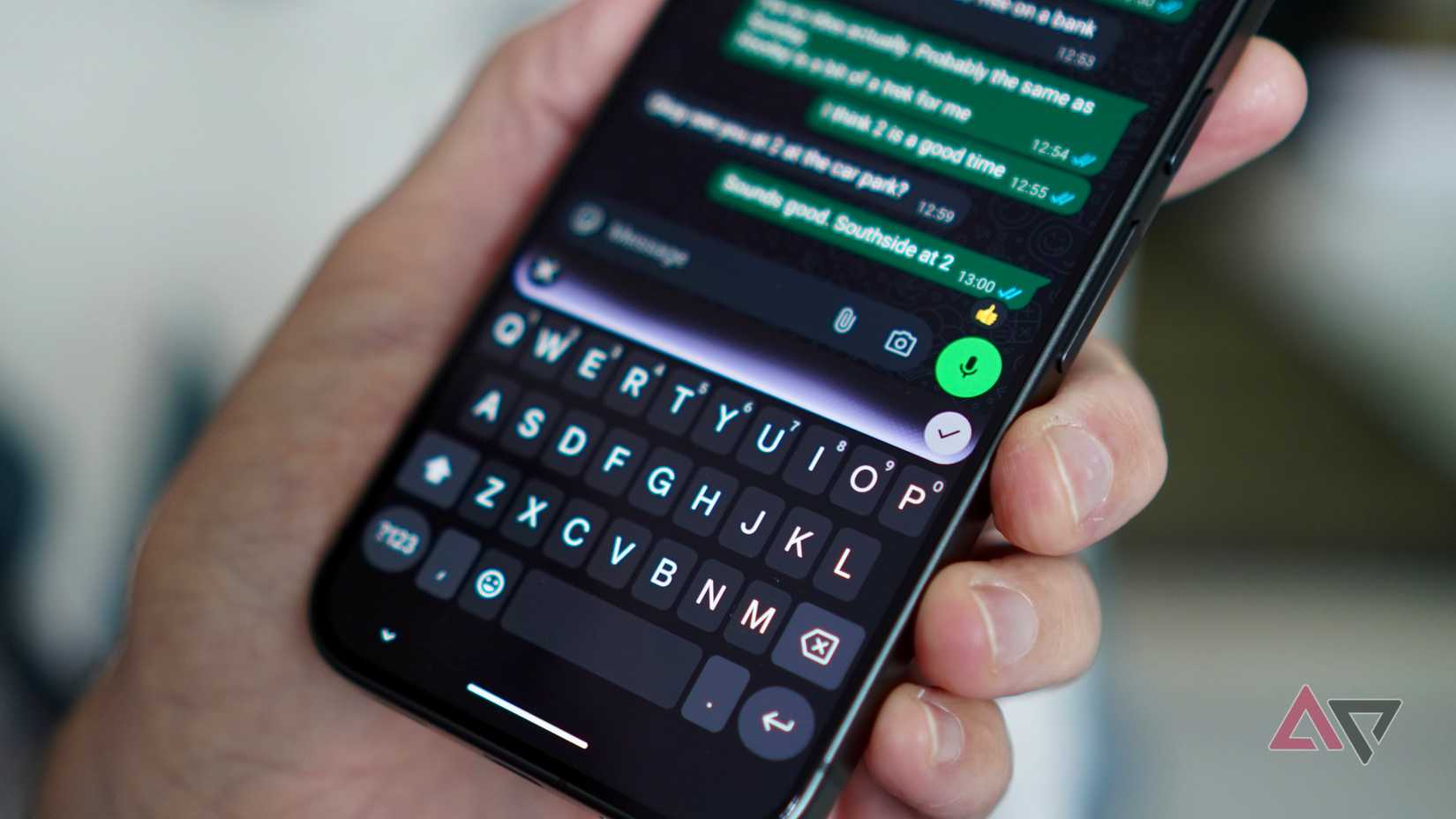
A flashy demo impresses you once. Better typing pays off every time you send a message. Rambler is in Gboard.
It cuts the hiccups and fixes your punctuation, so a rambling thought comes out as something you’d be happy to send. Setup takes about a minute.
Open a message or email and tap the text field.
Tap Gboard’s microphone. If the Rambler introduction pops up, choose Start.
If it doesn’t, open Gboard’s Menu > Settings > Voice typing, select Rambler, then go back to your message and tap the microphone again.
If you’re prompted for microphone access, pick Allow only while using the app.
Now talk the way you normally would, messy parts included. You can even change your mind mid-sentence, like “Let’s meet at 3, actually make it 2,” and Rambler keeps only the final version.
Google says Rambler is tuned for English, French, German, Hindi, Japanese and Spanish, among others.
Skip “organize my life” for now
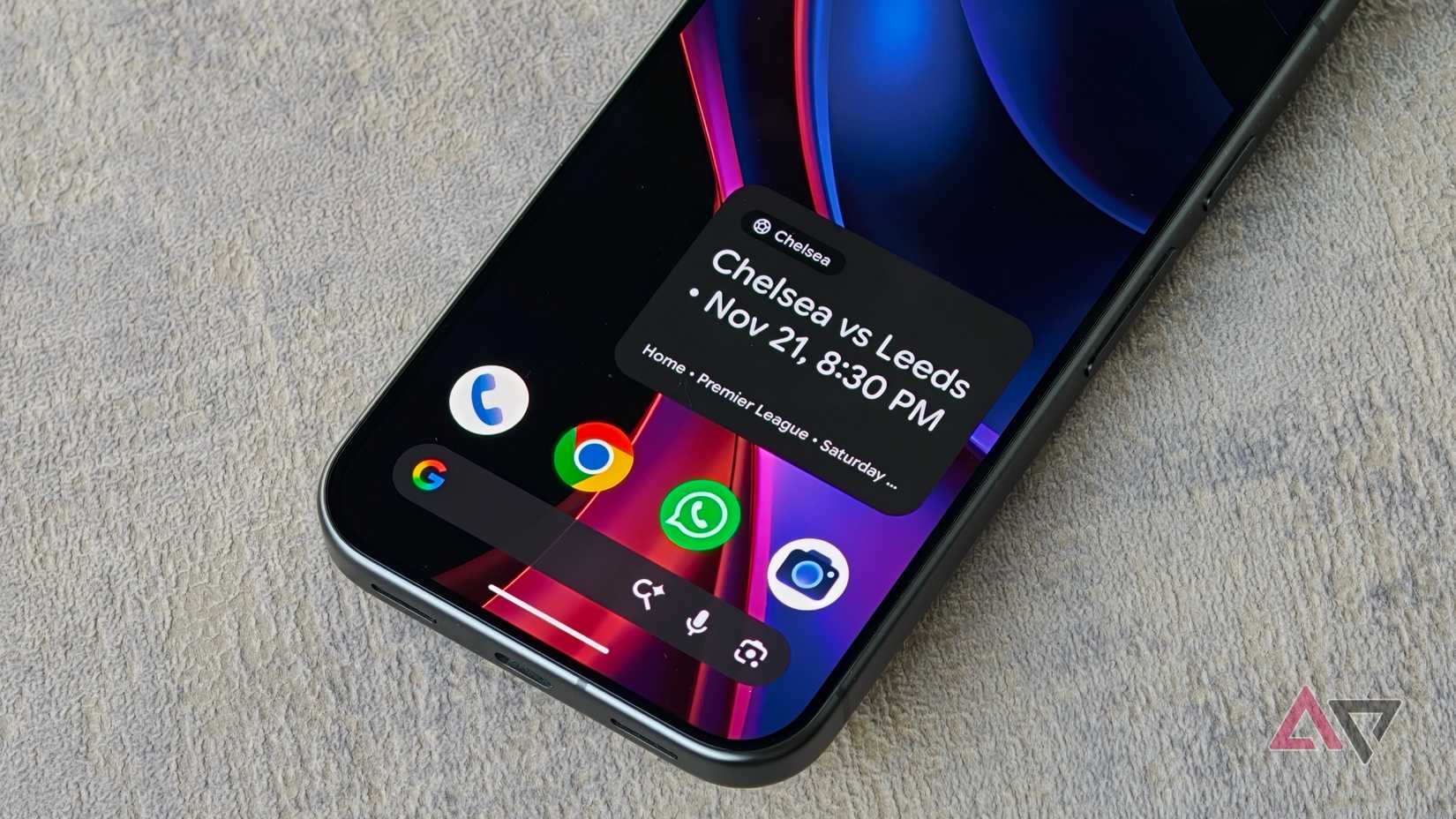
Ever wished an app had a widget it doesn’t? Create My Widget lets you skip the wait. Describe what you want. Gemini puts it together for your home screen.
It’s still a work in progress, so go in with an open mind and a willingness to tinker. Some widgets will nail it on the first try, others will miss the mark, and the fun is in figuring out what works.
My first prompt would be something small. Like your vacation countdown. Pick something you can check for accuracy right away, so you know whether to trust it. Here’s the flow.
Long-press an empty spot on the home screen.
Choose Widgets > Create, then tap Describe your widget.
Type your request and tap Send.
Look over the preview, then choose + Add.
Only allow device or app data when the widget needs it. If you want to change what it does later, long-press the widget and choose Edit.
If Create doesn’t show up in your widget picker yet, join the Create My Widget beta on Google Play.
Gemini can order your Uber now
Make sure you supervise for now
Credit: Lucas Gouveia / Android Police | Siberian Art / Shutterstock
App automation lets Gemini handle multi-step tasks. Supported services include Uber, Lyft, DoorDash, and Starbucks. It can’t drive every app on your phone (yet), so don’t expect it to.
To set it up, open Gemini’s Settings > Screen automation. Then ask Gemini for a task and follow the first-use permission prompts.
While Gemini works, tap View progress to watch what it’s doing, or tap Stop task to pull the plug.
That’s the only emergency brake on a Pixel 10. Other phones let you take the wheel and finish the task yourself, but the Pixel 10 can’t do that yet, so keep an eye on it.
Google’s current automation device list leaves out the 10 Pro Fold, even though it qualifies for the broader Gemini Intelligence update.
Gemini can spot your plans before you do
It’s only as smart as what you let it read
The setting behind proactive Gemini suggestions is called Proactive Assistance. It needs Gemini set as your default assistant and Personal Intelligence switched on. Getting there takes a few steps.
Go to Settings > Apps > Assistant > Digital assistants from Google > Gemini.
In Gemini’s profile menu, open Personal Intelligence > Connected Apps and follow the setup.
Open Gemini’s settings, choose Proactive Assistance and turn it on.
Use its Connected apps controls to choose which sources it can draw from, such as Messages and Screenshots.
Connect the sources that hold real plans and leave the noise out, so your suggestions stay useful.
Availability covers English in Australia, Canada, India, Malaysia, Singapore and the US, plus Japanese in Japan. The UK isn’t on the list.
Gemini will make phone calls for you
ID, US SIM and a subscription please

This feature is the most exclusive on this list. According to Google, you need a US location, a US SIM, English device language, age 18-plus and a Google AI subscription.
Install the latest Gemini app and join the Phone by Google public beta through Google Play. Then start the task in Gemini itself.
Ask Gemini to call a restaurant and book a table. Spell out the date and party size, then add your preferred time and the alternatives you’d accept.
Before anything dials, review the number and the task summary. Check what details Gemini plans to share, then tap Call for me.
The business hears that an AI assistant is calling on your behalf on a recorded line. Calls go out from your number over your mobile network at normal carrier rates.
Don’t use it for emergencies, and don’t expect it to authorize payments.
The Pixel 11 now has to earn its price
Black Friday deals are built to make last year’s phone feel old. A Pixel 10 that turns your rambling into clean messages and shows a widget you designed yourself doesn’t feel old at all.
It won’t match a Pixel 11 feature for feature, but the gap between the two phones is smaller now.
So before you hit checkout, give your current phone one evening in settings. If the Pixel 11 still feels worth it after that, it earned your money fair and square.